
GitHub is where your code lives. It is not a backup. An accidental force push, a deleted repository, a lapsed billing card or an organisation you lose access to all end the same way: the only copy was in someone else’s account.
This guide sets up the AWS side of an automated GitHub backup: an S3 bucket to hold the archives, and an IAM user with the three permissions the job actually needs and nothing more. It takes about ten minutes and costs pennies a month for most repositories.
It is written for our free GitHub Repos to S3 Backup n8n template, but nothing here is specific to it. Any backup job that writes to S3 needs the same bucket and the same policy.
What you will end up with
- A private S3 bucket that only your backup job can write to
- A dedicated IAM user whose credentials cannot do anything except manage backups in that one bucket
- An access key pair ready to paste into n8n
What you will not end up with is an admin key sitting in a workflow. That distinction is the whole point of the IAM section below.
Step 1: Create the S3 bucket
Sign in to the AWS Console and open S3, then choose Create bucket.
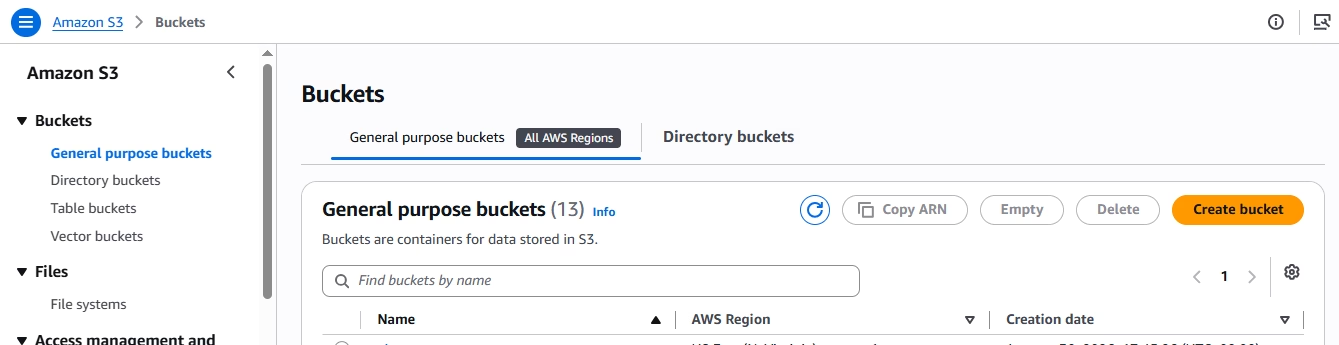
Bucket name
Bucket names are globally unique across every AWS account in the world, not just yours. backups was taken roughly a decade ago. Use something like yourcompany-github-backups.
Region
Pick a region near you and write it down. The AWS credential you create in n8n later must be set to this same region. A region mismatch is the single most common setup failure, and the error message does not say “wrong region” – it usually surfaces as a permissions or endpoint error, which sends people back to re-check a policy that was fine all along.

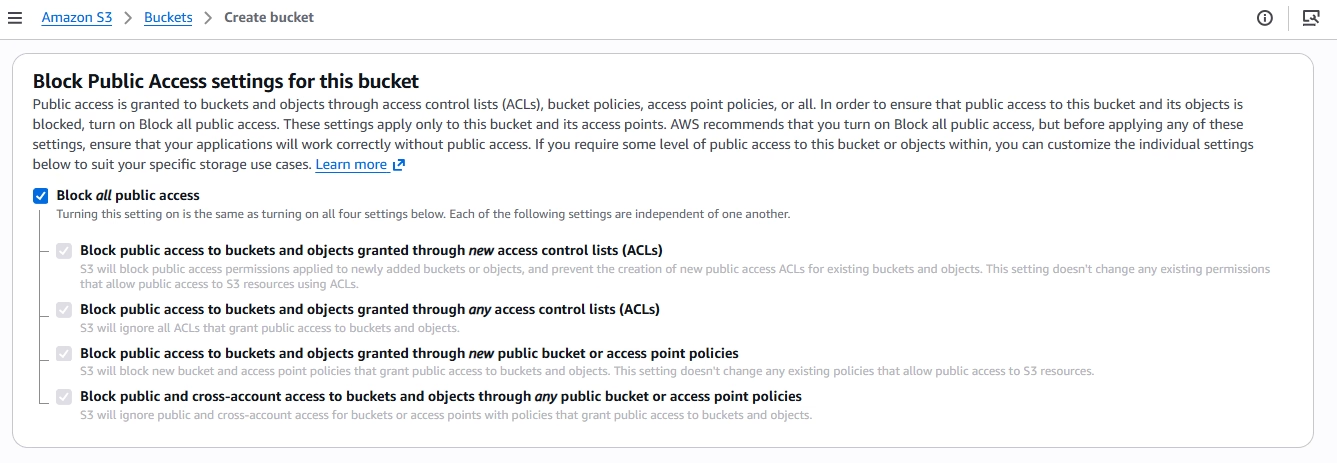
Block Public Access: leave it ON
AWS enables this by default. Leave it alone. These archives are your complete source code; there is no version of this where you want them publicly readable.
Versioning: leave it OFF
This one is counter-intuitive, so it is worth explaining rather than just asserting.
Versioning keeps every previous version of an object forever. A backup job that already writes a new timestamped file on every run does not benefit from it, because it never overwrites anything. Worse, when the retention step deletes an old archive, versioning does not remove it – it adds a delete marker and keeps the data. You then pay indefinitely for archives you believe you deleted, and the bill is the only thing that tells you.
If you want versioning for other reasons, add a lifecycle rule that expires non-current versions too.
Encryption
The default (SSE-S3) is fine and costs nothing. Use KMS only if you have a compliance reason – it adds per-request charges and another set of permissions to get right.
Create the bucket.
Step 2: Create the IAM policy
Now the permissions. We are creating a user that can do exactly three things, in exactly one bucket.
Open IAM -> Policies -> Create policy, and switch to the JSON tab.
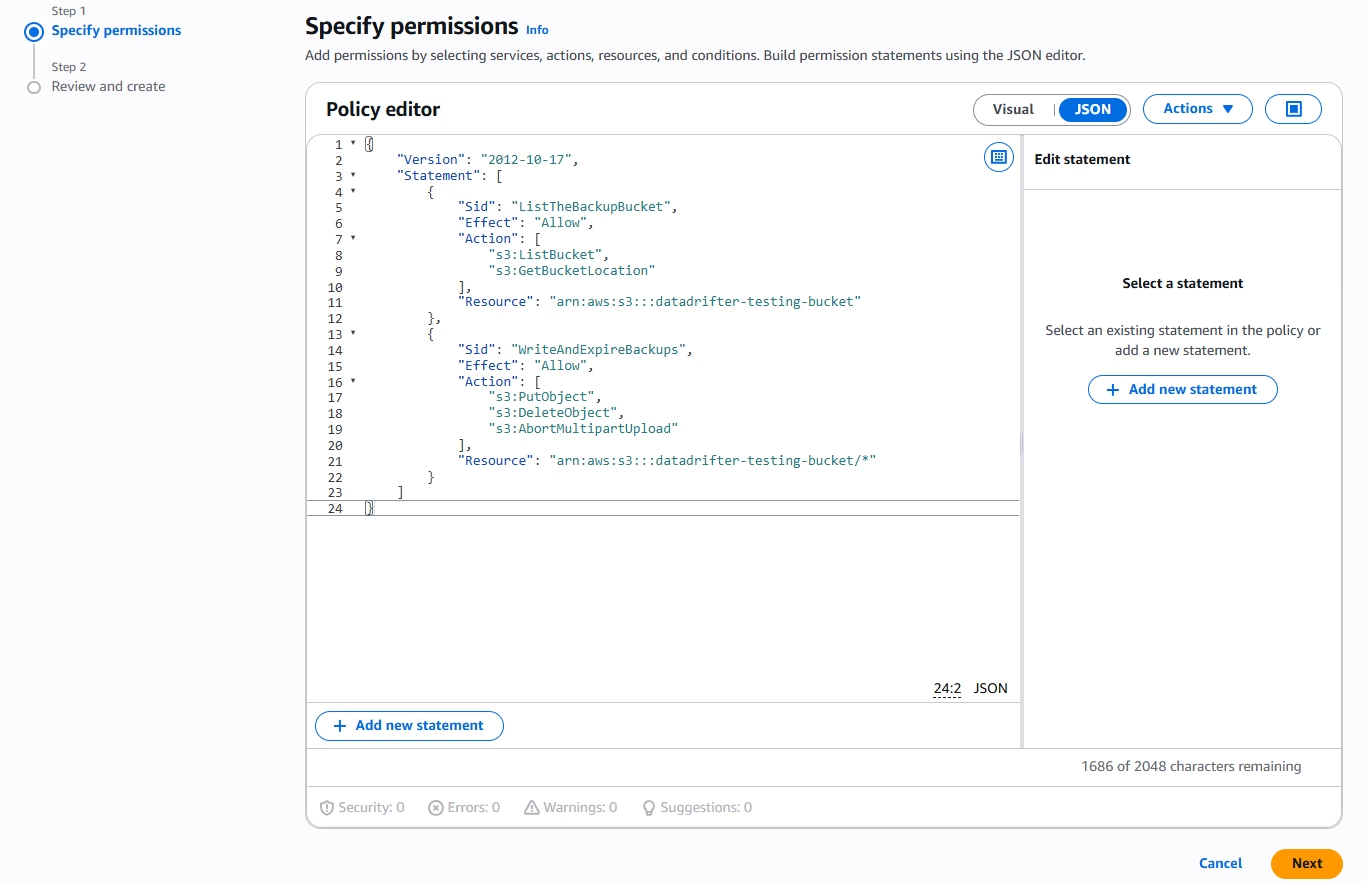
Paste this, replacing YOUR-BUCKET-NAME in both places:
{
  "Version": "2012-10-17",
  "Statement": [
    {
      "Sid": "InspectAndListTheBucket",
      "Effect": "Allow",
      "Action": [
        "s3:ListBucket",
        "s3:GetBucketLocation"
      ],
      "Resource": "arn:aws:s3:::YOUR-BUCKET-NAME"
    },
    {
      "Sid": "WriteAndExpireBackups",
      "Effect": "Allow",
      "Action": [
        "s3:PutObject",
        "s3:DeleteObject",
        "s3:AbortMultipartUpload"
      ],
      "Resource": "arn:aws:s3:::YOUR-BUCKET-NAME/*"
    }
  ]
}
Why there are two statements, and why one has /* and the other does not
This trips up almost everyone the first time, and copying a policy you do not understand is how over-permissive keys get created.
s3:ListBucketands3:GetBucketLocationare operations on the bucket itself – “show me what is in here”, and “which region is this in”. Their resource is the bucket ARN with no trailing/*.s3:PutObject,s3:DeleteObjectands3:AbortMultipartUploadare operations on objects inside the bucket. Their resource needs the/*.
Put /* on the ListBucket line and listing fails with an access denied error that names a permission you appear to have granted.
Why GetBucketLocation is in there
This one is easy to miss and produces a genuinely misleading error. Before listing anything, the S3 client asks AWS which region the bucket lives in. Without s3:GetBucketLocation the job fails with “Forbidden – perhaps check your credentials?”, which sends you off to regenerate an access key that was correct the whole time.
We shipped a policy without it and hit exactly this on the first real run. It is in the list above now.
All of these permissions are required
It is tempting to leave out s3:DeleteObject on the grounds that a backup job should not be deleting things. Do not.
Retention is what stops your storage bill growing forever. Without delete permission the backup still succeeds, still reports success, and quietly never cleans up. You find out months later from an invoice. If deletion genuinely worries you, the safer control is a dedicated bucket that holds nothing else – not a missing permission.
Name the policy something like github-backup-s3 and create it.
Step 3: Create the IAM user
Go to IAM -> Users -> Create user.
Give it a name that says what it is, such as n8n-github-backup. Do not tick “Provide user access to the AWS Management Console” – this user is for a program, and a console password is a login you would have to secure for no reason.

On the permissions step, choose Attach policies directly and select the policy you just made.

Step 4: Create the access key
Open the user, go to Security credentials, and choose Create access key. For the use case, pick Application running outside AWS.
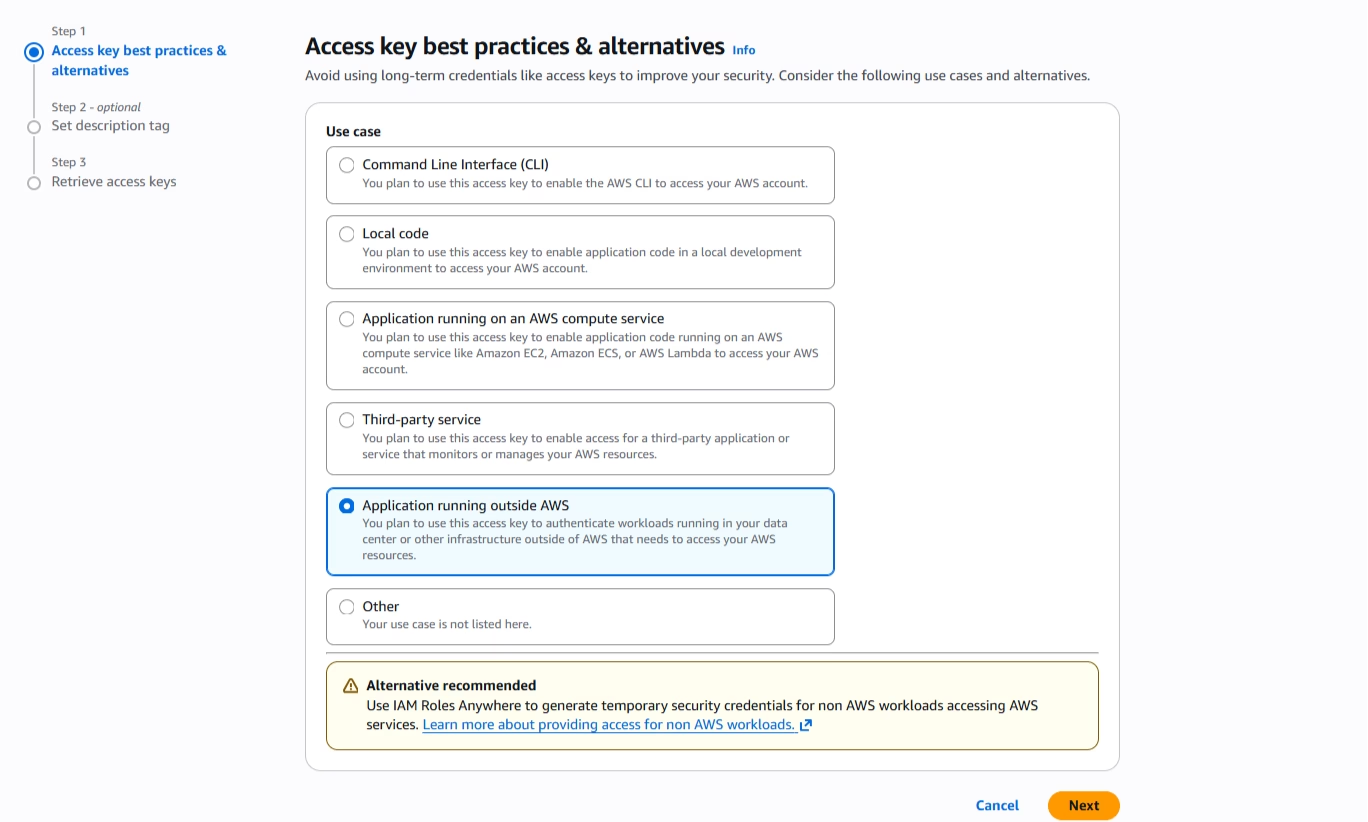

You now get an access key ID and a secret access key. The secret is shown once. Copy both somewhere safe before leaving the page. If you lose the secret, you cannot recover it – delete the key and create another, which is mildly annoying rather than a disaster.
Treat this pair like a password, because that is what it is.
Step 5: Add the credential in n8n
In n8n, go to Credentials -> New -> AWS. Paste the access key ID and secret, and set the region to the one your bucket is in.
Attach it to every S3 node in your workflow. In our template that is three: List existing backups, Upload to S3, and Delete expired backup.
Testing it, and what failure looks like
Run the workflow once by hand before putting it on a schedule, and check the bucket afterwards. An empty bucket and a successful-looking run is the outcome to watch for.
- “Forbidden – perhaps check your credentials?” when listing – almost always
s3:GetBucketLocationmissing, not a bad key. - Access Denied on upload – the policy resource is missing its
/*, or the credential region does not match the bucket. - Access Denied on listing – the opposite: a
/*on the ListBucket resource that should not be there. - Everything succeeds but old files are never removed –
s3:DeleteObjectis missing. This one does not announce itself, so check for it deliberately. - Only public repositories are backed up – a GitHub problem rather than an AWS one: the token is missing the
reposcope.
What this costs
S3 Standard is billed per GB per month plus a small per-request charge, and rates vary by region, so check the current AWS pricing page for yours. For most people backing up source code the storage is small – source archives compress well, and code repositories are usually measured in megabytes rather than gigabytes.
Your retention window is the lever that controls the bill: it sets how many copies of each repository you are paying to keep at any one time.
One limitation worth knowing before you rely on this
Backups built on GitHub’s archive endpoint contain the working tree at the default branch – the files as they currently stand. They do not contain commit history, other branches, tags, issues, pull requests, releases or the wiki.
That answers “I need the code back”. It does not answer “I need the repository back exactly as it was”. If you need full history, you want a mirror clone, which is a different job with different storage characteristics.
Knowing which of those two you actually need is more important than the backup running nightly.
Get the template
The bucket and the IAM user you just created are everything the workflow needs. GitHub Repos to S3 Backup is a free n8n template that lists every repository you own, archives each one to that bucket on a schedule, deletes anything past your retention window, and emails you a report on every run. Paste the policy above, attach three credentials, and it is done.
It archives the working tree at each repository’s default branch, not the full git history – the distinction described above.
Backing up a database to the same bucket
The bucket and the IAM policy on this page are not specific to GitHub. Anything writing backups to S3 can use them, and a database is the obvious next thing to protect.
How to Back Up MySQL to Amazon S3 Without SSH Access picks up where this article stops. It covers the read-only database user, the exact privileges it needs, and what a protocol-level dump does not contain. The template it describes, MySQL / MariaDB to S3 Backup, is free as well and writes into a bucket set up exactly like this one.